Connectors
Connectors store the credentials RoostGPT uses to communicate with external platforms — Git repositories, AI models, notification channels, and ticketing systems. They are created once and then selected when configuring test generation jobs or workflows.
For the required fields, token scopes, and setup steps for each connector type, see the Configuration section.
Navigating to Connectors
Click Connectors in the top navigation bar. The connectors list shows all connectors you have access to, with options to search, filter, and manage them.

Use Show My Connectors to filter to your personal connectors. Use Show Org Connectors to see connectors shared across your organization.
Adding a Connector
- Click Add Connector.
- Select the connector type from the picker.
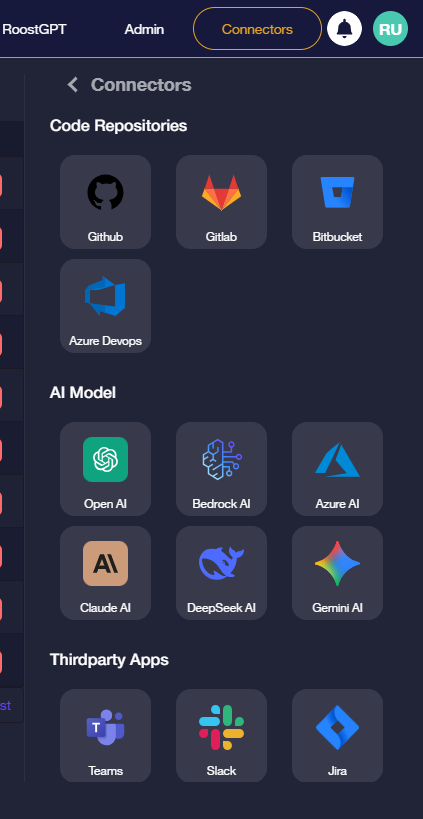
| Category | Supported Integrations |
|---|---|
| Code Repositories | GitHub, GitLab, Bitbucket, Azure DevOps |
| AI Model | OpenAI, Bedrock AI, Azure AI, Claude AI, DeepSeek AI, Gemini AI |
| Thirdparty Apps | Microsoft Teams, Slack, Jira, Xray |
- Enter the credentials for the selected connector type and click Save.
- Click Test to verify the connector is reachable before using it in a workflow.
Managing Connectors
Each row in the connector table has four action buttons:

| Button | Description |
|---|---|
| Test | Validates the stored credentials against the platform. Displays a success or error message. |
| Info | Opens a read-only view of the connector's saved configuration. |
| Edit | Opens the connector form pre-filled so you can update credentials or settings. |
| Delete | Prompts for confirmation before permanently removing the connector. |
Deleting a Connector
![Delete confirmation — "Do you want to delete Connector [name]?" with Cancel and Delete buttons](/assets/images/connector-delete-confirm-f06f79fefff31ec38d5db38c251a3f94.png)
Deleting a connector is permanent and immediately breaks any workflow or job that depends on it. Click Cancel to go back without making changes.
Shared vs Personal Connectors
When creating or editing a connector, enable the Share connector with Organization toggle to make it available to all users in the workspace. Personal connectors are visible only to you.
Sharing is useful for team-wide integrations such as a shared Git repository or an organization AI account, while keeping personal connectors private for individual experimentation or cost tracking.
Troubleshooting
| Symptom | Likely Cause | Fix |
|---|---|---|
| Test fails with auth error | Credential expired or revoked | Regenerate in the source platform and update the connector via Edit |
| Connector not visible in job setup | Page not refreshed after save | Reload the page and confirm the connector appears in the list |
| Works for you but not teammates | Connector is personal, not shared | Edit the connector and enable Share connector with Organization |