Analysis
The Analysis view shows the workflows Roost has discovered for a project — before any tests have been executed. From here you review the discovered scenarios, select the ones you want to test, and trigger test generation against a chosen branch.
Workflows List
The left panel lists all discovered workflows with Total and Pending counters at the top. All workflows start in a PENDING state until tests are generated.
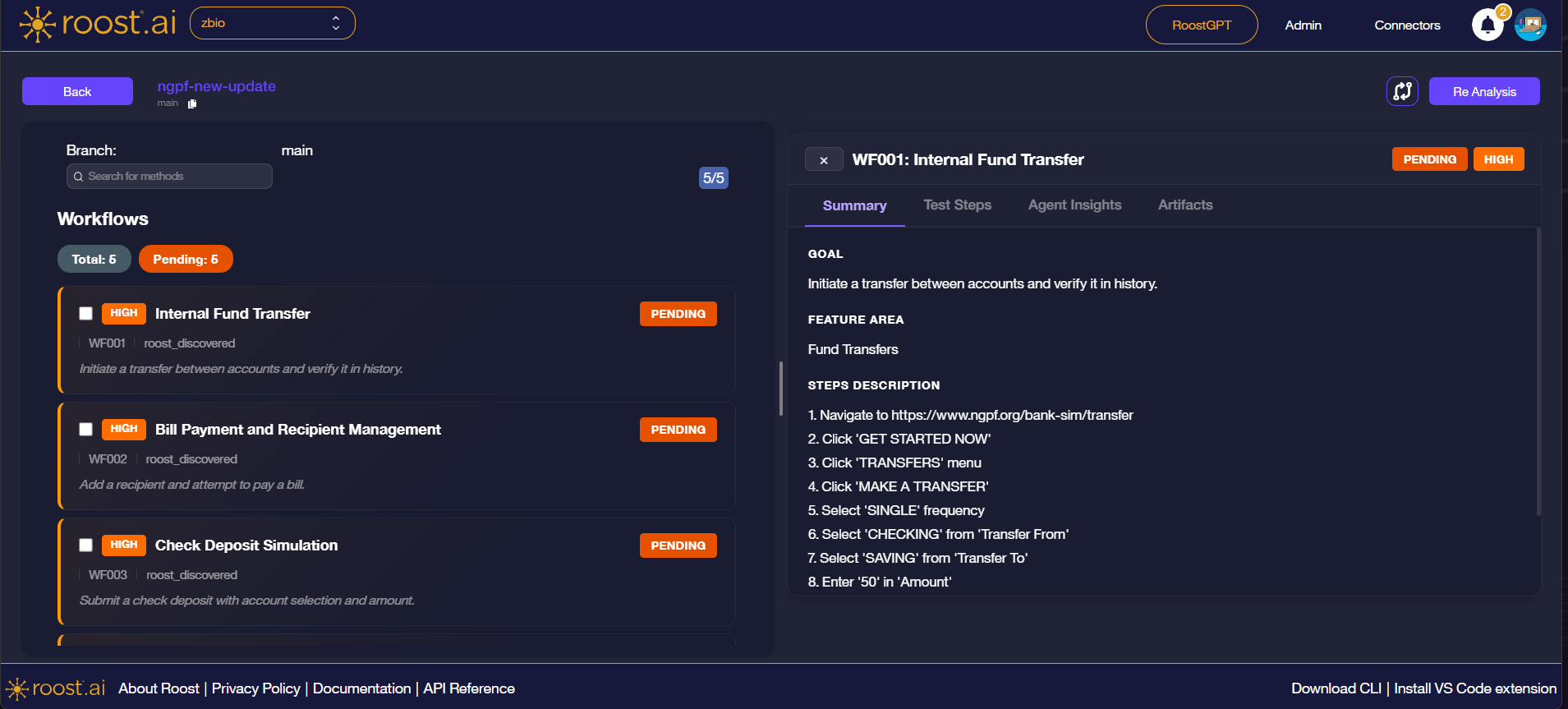
Each workflow card displays:
| Field | Description |
|---|---|
| Checkbox | Select the workflow to include it in the next test generation |
| Priority badge | HIGH or MEDIUM — business criticality of the workflow |
| Workflow name | Human-readable name discovered by the agent |
| Status badge | PENDING — no test has been run for this workflow yet |
| Workflow ID | Unique identifier (e.g. WF001) |
| Discovery method | How the workflow was found (e.g. roost_discovered) |
| Goal | Short description of what the workflow validates |
Additional controls in the left panel:
| Control | Description |
|---|---|
| Branch | Displays the branch the analysis was run against |
| Search for methods | Filter the workflow list by keyword |
| 5/5 badge | Shows visible workflow / total workflow count |
Click any workflow card to open the detail panel on the right. The tabs — Summary, Test Steps, Agent Insights, and Artifacts — are the same as in the Insights view, but Test Steps, Agent Insights, and Artifacts will show "No data available for this workflow" until tests have been generated.
Selecting Workflows and Generating Tests
Check one or more workflows to enable the Generate Tests button in the top-right of the page.
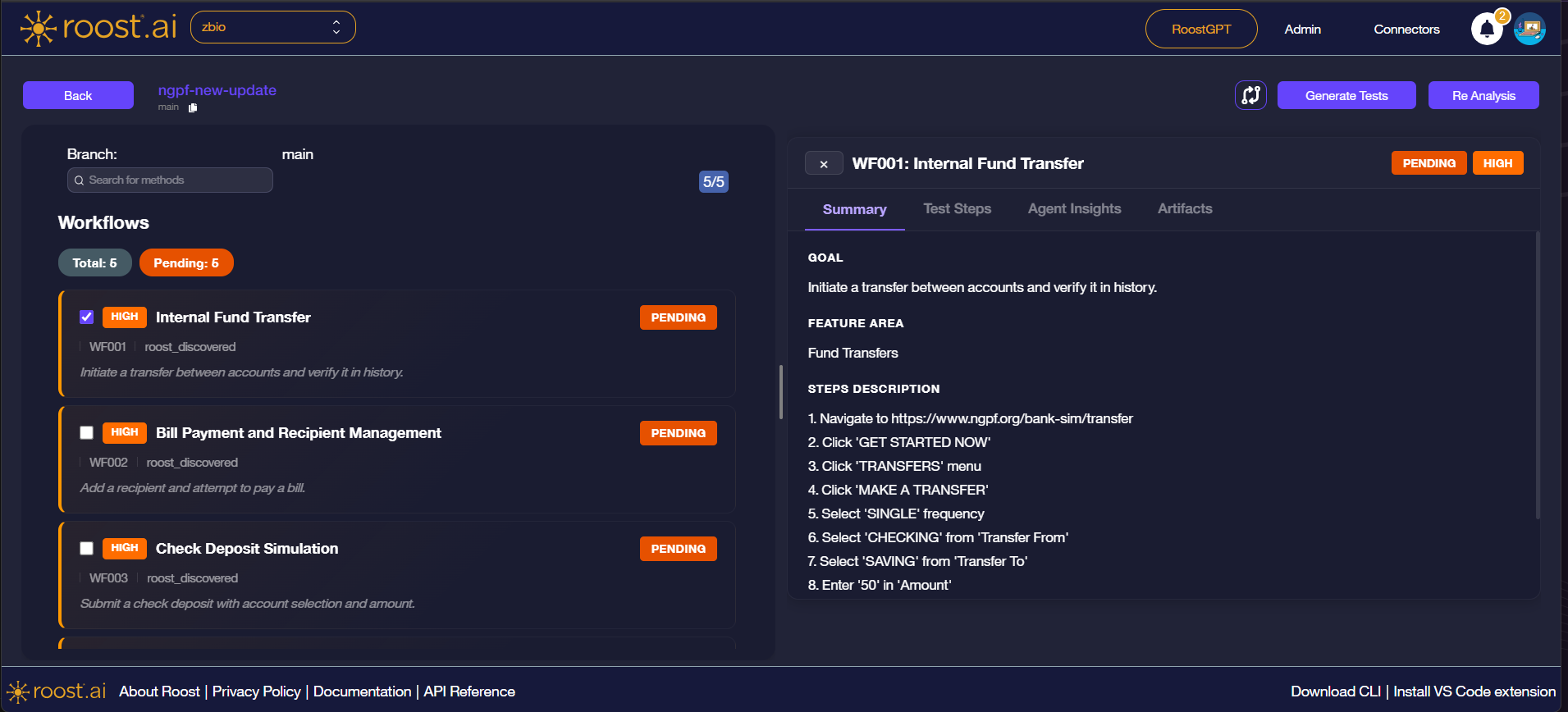
Once at least one workflow is selected, click Generate Tests to open the generation dialog.
Generate Tests Dialog
The dialog asks which branch contains the Metadata.json file Roost should use when generating the test suite.
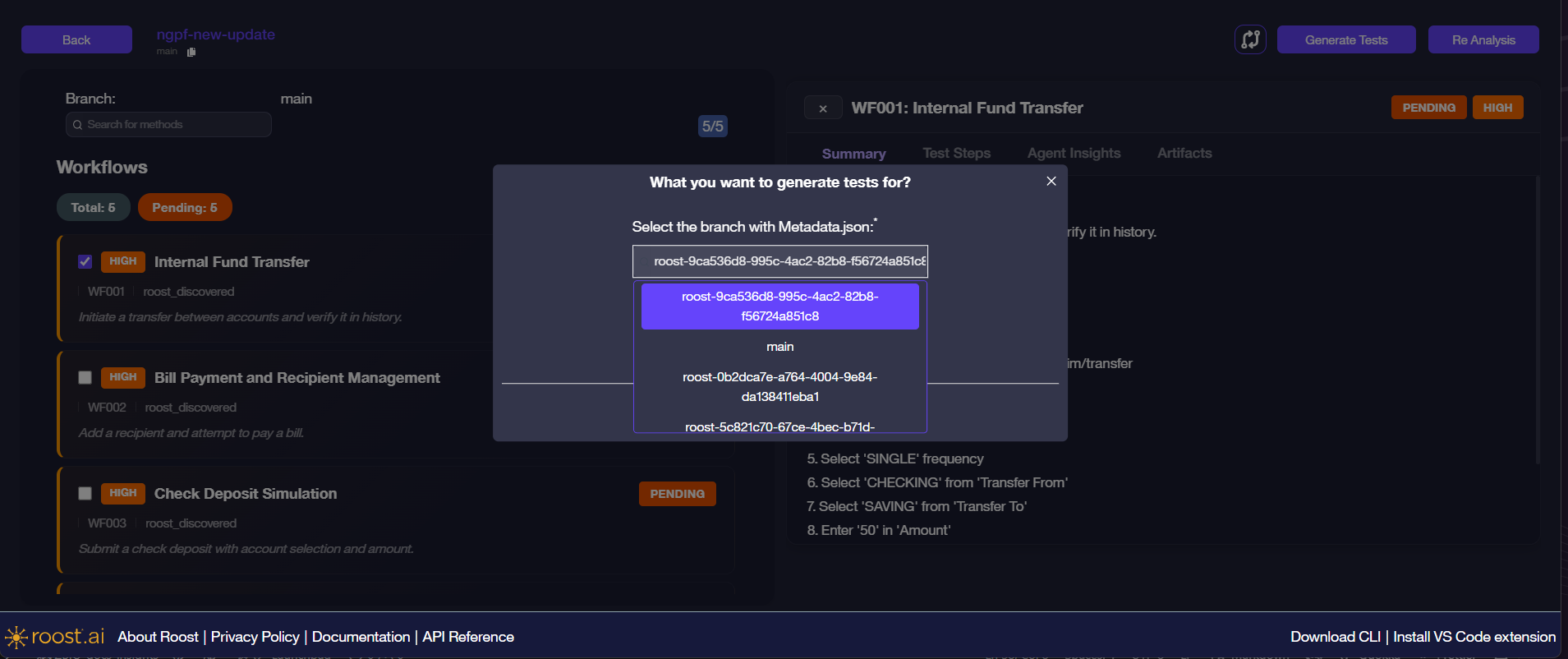
Select the branch from the dropdown. The list includes:
- Roost-created analysis branches (UUID-prefixed, e.g.
roost-9ca536d8-...) - Your repository branches (e.g.
main)
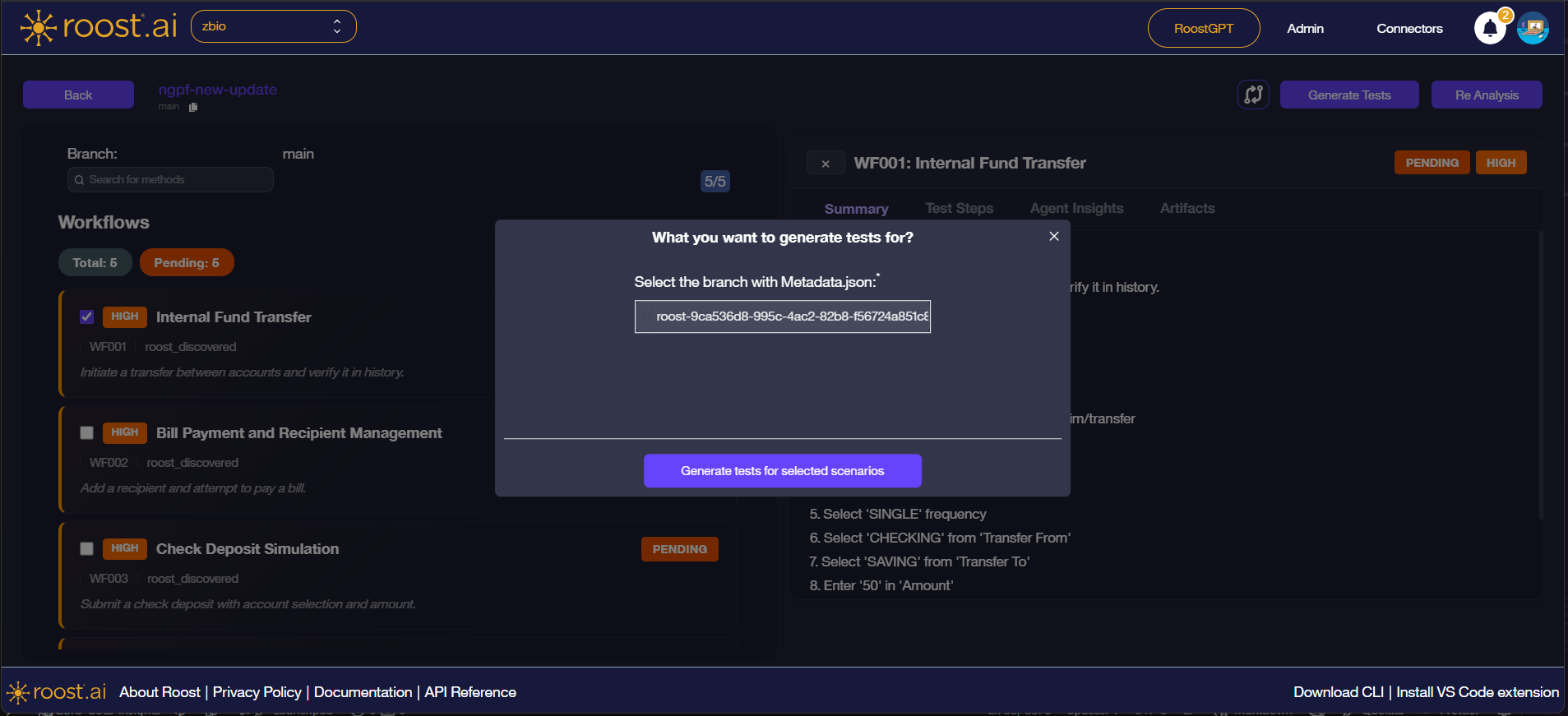
After selecting a branch, click Generate tests for selected scenarios to start test generation. Roost will generate the Playwright POM test files and scenario summaries for the selected workflows. Once complete, the workflows will appear in the Insights view with their results.
Re Analysis
Click Re Analysis in the top-right to re-run workflow discovery for the project. This will rediscover workflows from the current state of the application and update the list.
Re Analysis replaces the existing discovered workflows. Any workflows that are no longer found will be removed from the list.