Admin Panel
The Admin panel gives workspace administrators control over users, platform configuration, and usage limits. Access it by clicking Admin in the top navigation bar.
https://<your-roost-domain>/admin/app
Overview
The panel has three tabs:
| Tab | Purpose |
|---|---|
| Users | View, invite, and manage workspace members |
| Settings | Configure AI providers, tool stacks, and usage quotas |
| Dashboard | Monitor test generation activity and usage across the workspace |

Users Tab
The Users tab lists all members in your workspace with their details and management actions.
User Table
| Column | Description |
|---|---|
| Rooster | Display name or username |
| Registered email address | |
| App User ID | Internal unique identifier assigned on sign-up |
| Signed Up On | Date the user joined the workspace |
| Actions | Per-user management buttons |
Use the Search for the users field to filter by name or email, then click Apply. Click Reset to clear the filter.
Adding Users
| Button | Description |
|---|---|
| Add Rooster | Directly creates a new user account in the workspace |
| Invite Rooster | Sends an email invitation for the user to sign up |
User Actions
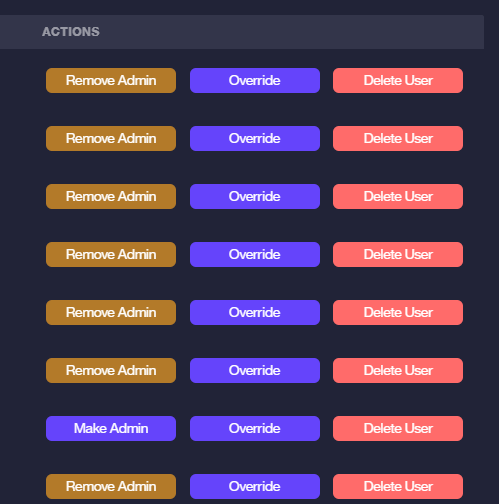
Each row has three action buttons:
| Button | Description |
|---|---|
| Make Admin / Remove Admin | Grants or revokes admin privileges for the user |
| Override | Overrides the user's current usage limits individually |
| Delete User | Permanently removes the user from the workspace |
Settings Tab
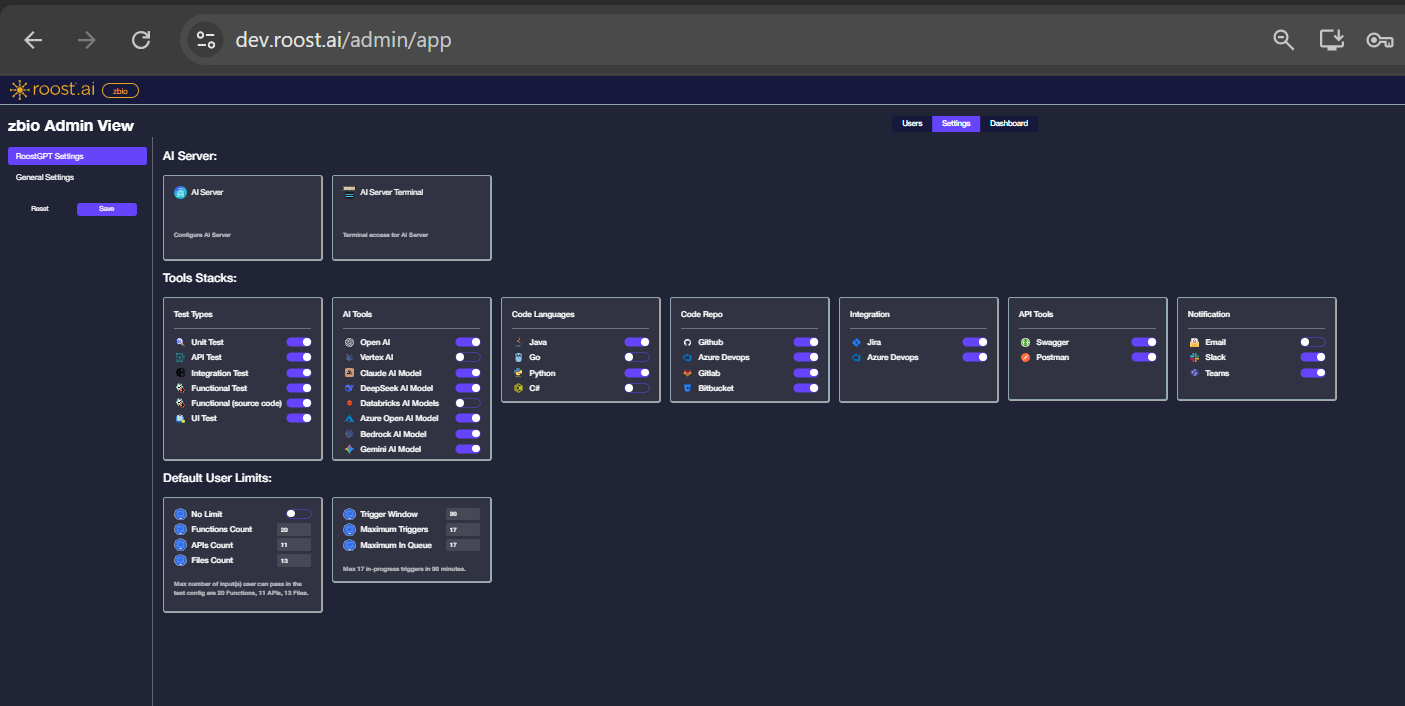
The Settings tab controls platform behaviour for all workspace users. Use the Load and Save buttons in the left sidebar to restore or persist the full configuration.
AI Server
| Option | Description |
|---|---|
| AI Server | Primary AI backend endpoint that RoostGPT connects to |
| AI Server Terminal | Terminal process for self-hosted AI server deployments |
Tools Stacks
Toggles control which capabilities are available to users workspace-wide. Disabling a toggle removes that option from all users' test generation workflows.
| Category | Options |
|---|---|
| Test Types | Unit, API, Integration, Functional, UI |
| AI Tools | OpenAI, Google Gemini, Claude, Azure OpenAI, AWS Bedrock |
| Code Languages | Java, Go, Python, C# |
| Code Repo | GitHub, GitLab, Bitbucket, Azure DevOps |
| Integration | Jira, Azure DevOps work items |
| API Tools | Swagger / OpenAPI, Postman |
| Notification | Email, Slack, Microsoft Teams |
Default User Limits
Sets the default usage quotas applied to all new users. Individual users can be adjusted using the Override action in the Users tab.
| Limit | Description |
|---|---|
| No Limit | When enabled, removes all usage caps for users |
| Functions Count | Maximum number of functions a user can generate tests for |
| APIs Count | Maximum number of API endpoints a user can generate tests for |
| Files Count | Maximum number of files a user can process per job |
| Trigger Window | Time window (in minutes) for counting trigger events |
| Maximum Triggers | Maximum test generation triggers allowed within the window |
| Maximum in Queue | Maximum number of jobs a user can have queued at once |
Dashboard Tab
The Dashboard tab provides a workspace-level view of test generation activity, user usage, and system health. Use it to track volume trends and review consumption across your organization.
Access Control
The Admin panel is only visible to users with the Admin role. Regular users see only RoostGPT and Connectors in the top navigation bar. Contact your workspace owner to request admin access.