Ticketing Integrations
RoostGPT integrates with ticketing systems to pull business requirements directly into the test generation workflow. When a Jira story or Azure DevOps work item is connected, the AI uses its content to generate more contextually accurate and requirement-aligned tests.
Ticketing tool integration is configured inside the test creation window under the Integration section.
Ticketing tool integration is primarily used during Functional Test creation, where user stories and acceptance criteria drive the test scenario generation.
Supported Systems
| System | Status |
|---|---|
| Jira Cloud | Available |
| Jira Server / Data Center | Available |
| Azure DevOps Work Items | Available |
Jira
Prerequisites
- A Jira account with Browse Projects permission on the target project
- An Atlassian API token
Generate a Jira API Token
- Log into id.atlassian.com
- Go to Security → API tokens
- Click Create API token
- Enter a label (e.g.
RoostGPT) and click Create - Copy the token immediately — it is only shown once
Configure in the Test Window
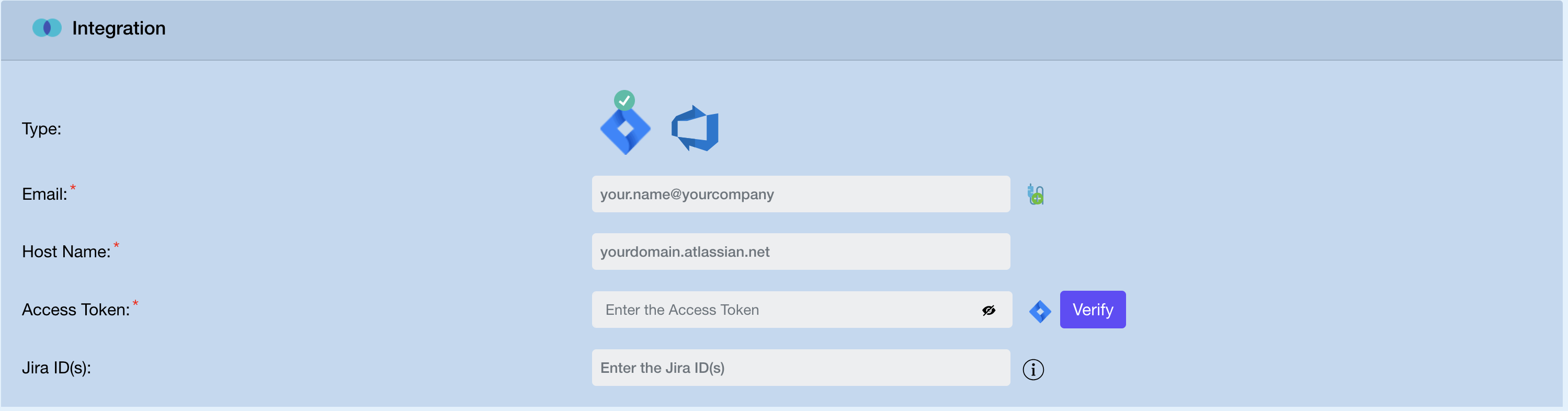
In the Integration section of the test creation window, select Jira and fill in:
| Field | Description |
|---|---|
| Your Jira login email address | |
| Host Name | Your Jira instance URL (e.g. yourcompany.atlassian.net) |
| Access Token | The API token you generated above |
| Jira ID(s) | Ticket ID(s) to use as requirements context (e.g. PROJ-123). Enter multiple IDs comma-separated (e.g. PROJ-123, PROJ-456) |
Click Verify after entering the Access Token to confirm the connection before saving.
Azure DevOps
Prerequisites
- An Azure DevOps Personal Access Token (PAT) with Work Items (Read) scope
Generate a PAT
- Sign in to dev.azure.com
- Click your profile icon → Personal access tokens
- Click New Token
- Set the scope to Work Items → Read
- Click Create and copy the token
Configure in the Test Window
In the Integration section of the test creation window, select Azure DevOps and fill in:
| Field | Description |
|---|---|
| Organization Name | Your Azure DevOps organization name (e.g. your-org) |
| Access Token | Your PAT |
| Ticket ID(s) | Work Item ID(s) to use as requirements context. Multiple IDs can be entered comma-separated (e.g. 123, 456) |
Click Verify to confirm the connection before saving.
How It Works in Functional Tests
When a ticketing tool integration is configured on a test:
- RoostGPT fetches the linked ticket(s) — title, description, acceptance criteria, and comments
- This content is passed to the AI model alongside your code or API spec
- The AI generates test scenarios that reflect the actual business requirements described in the ticket
- For Functional Tests, this produces Gherkin
.featurefiles and test scenarios aligned to the story
For more details on how generated Gherkin files can be pushed to Xray, see the Jira Integration guide.