Notifications
RoostGPT sends notifications when a test generation job completes or fails. Notifications are configured per test — directly inside the test creation window — and are available in the Web UI only. The CLI and IDE Plugin do not support notifications.
Supported Channels
| Channel | Status |
|---|---|
| Slack | Available |
| Microsoft Teams | Available |
| Available |
When You Get Notified
All notification events are sent to the configured channel. Events are not individually selectable — when notifications are enabled for a test, all of the following are delivered:
| Event | Description |
|---|---|
| Test generation complete | Tests have been generated and a PR has been created |
| Test generation failed | Generation encountered an error |
Slack
RoostGPT integrates with Slack via a Slack API token obtained by installing the RoostAI Slack app to your workspace.
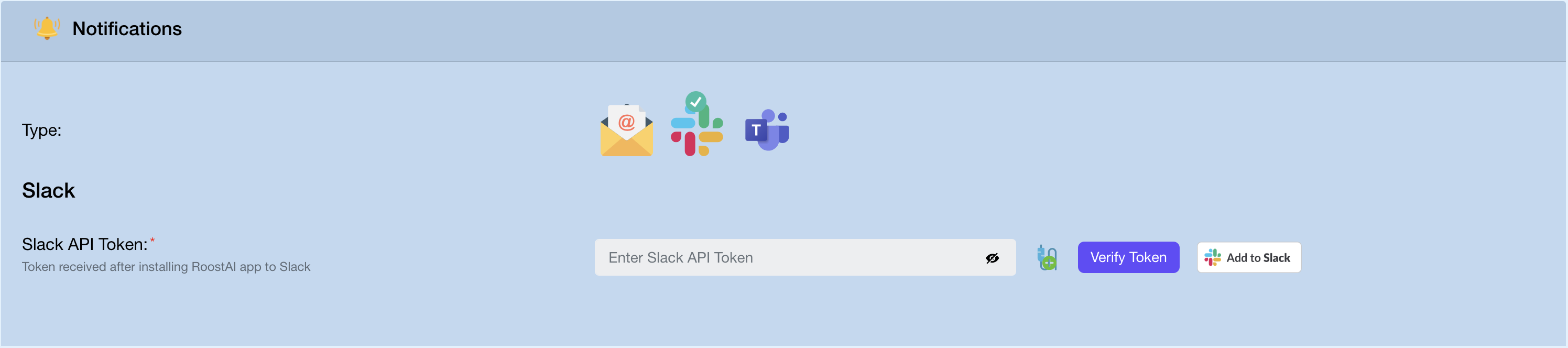
Setup
- Inside the test creation window, go to the Notifications section
- Select Slack as the notification type
- Click Add to Slack — this opens the Slack app installation flow
- Authorize the RoostAI app for your workspace
- Copy the Slack API Token provided after installation
- Paste the token into the Slack API Token field
- Click Verify Token to confirm the connection
- Click Save
Microsoft Teams
RoostGPT connects to Microsoft Teams using your Azure Tenant ID.
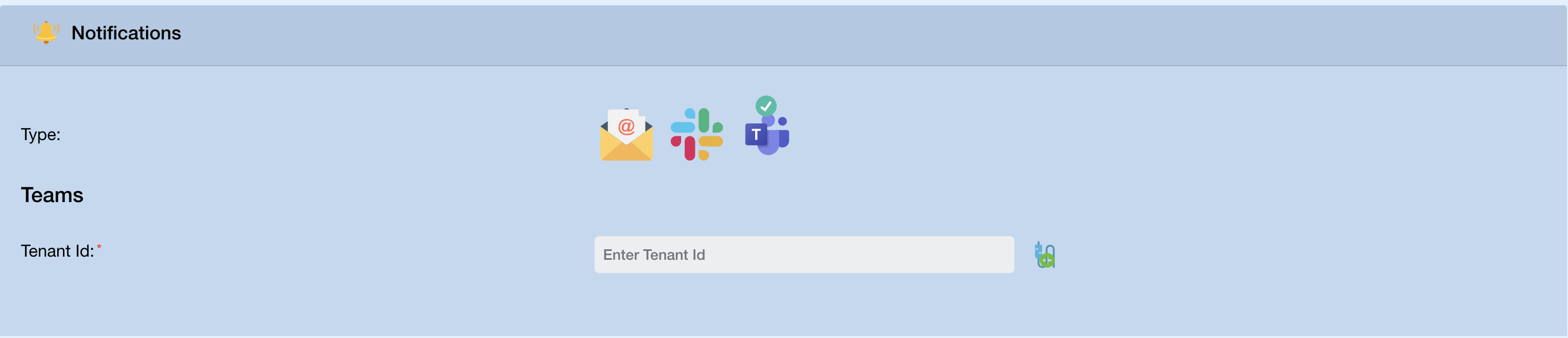
Setup
- Inside the test creation window, go to the Notifications section
- Select Teams as the notification type
- Enter your Tenant ID — this is the Directory (tenant) ID from your Azure Active Directory
- Click Save
To find your Tenant ID: go to portal.azure.com → Azure Active Directory → Overview — the Tenant ID is listed under Basic information.
Email
RoostGPT can send notification emails to specific addresses or to all members of the current project.
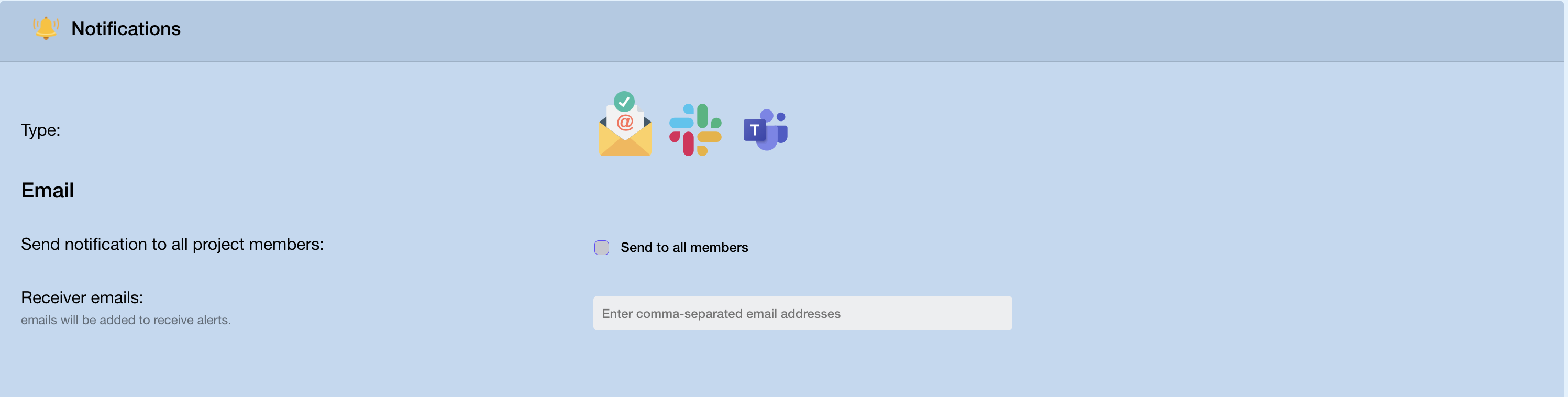
Setup
- Inside the test creation window, go to the Notifications section
- Select Email as the notification type
- Either:
- Check Send to all members to notify every member of the current project, or
- Enter one or more addresses in Receiver emails (comma-separated)
- Click Save