GitLab Configuration
Generate a Personal Access Token for GitLab and configure it in RoostGPT.
GitLab Cloud (gitlab.com)
Quick Token Generation
Use this direct link to go straight to the token creation page:
Manual Steps
-
Go to GitLab → Settings → Access Tokens
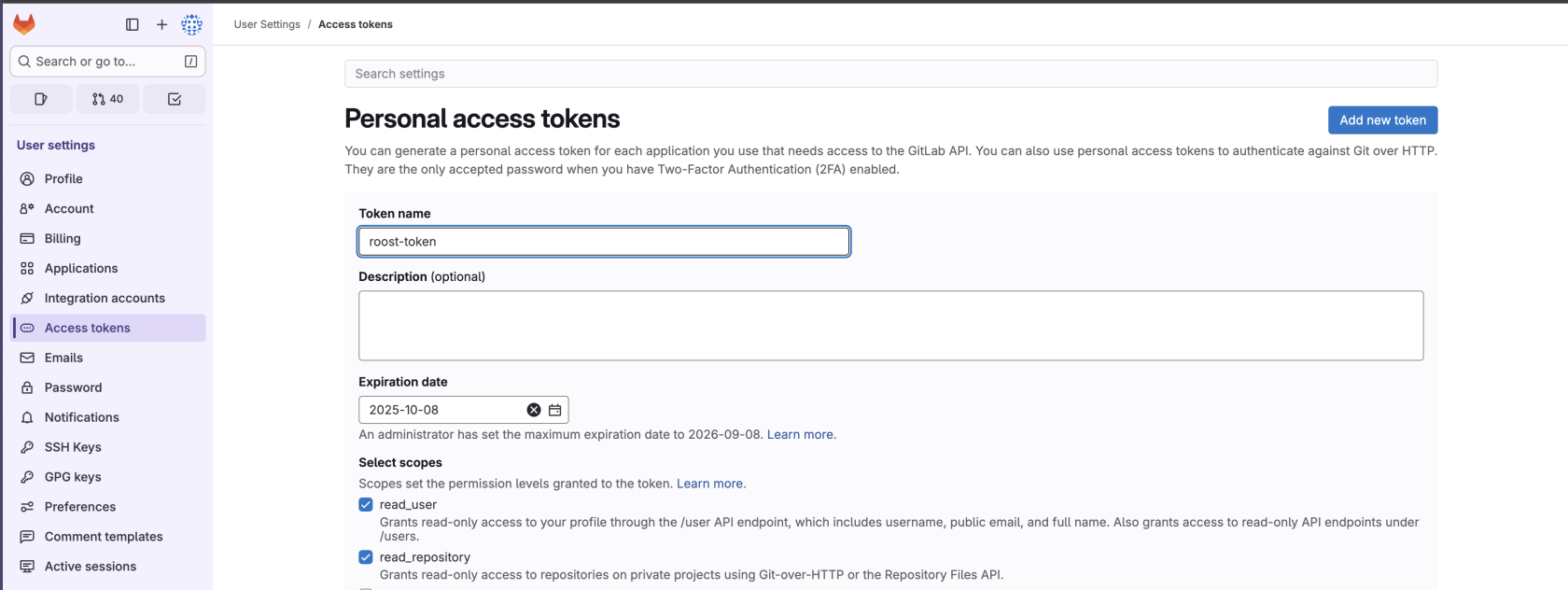
-
Enter a token name and expiration date
-
Select the required scopes (see below)
-
Click "Create token"
-
Copy the token immediately — it is shown only once
Required Scopes
| Scope | Purpose |
|---|---|
api | Complete API access |
read_repository | Read repository content |
write_repository | Write repository content |
read_user | Read user information |
read_api | Read API information |
GitLab Self-Hosted
- Token Type: Personal Access Token
- Generation Steps: Same as GitLab Cloud but on your self-hosted instance
- Base URL: Configure your GitLab instance URL (e.g.,
https://gitlab.yourcompany.com)
Add to RoostGPT
Web UI (Connector)
- Click Connectors in the top navigation bar → Code Repositories
- Select GitLab
- Enter your Personal Access Token
- For self-hosted instances, also enter your Base URL
CLI (.env file)
GIT_TYPE=gitlab
SOURCE_GIT_TOKEN=glpat-...your_token...
SOURCE_OWNER_NAME=your-group-or-username
SOURCE_REPO_NAME=your-repo
SOURCE_REPO_ID=12345678
SOURCE_BASE_BRANCH=main

# For self-hosted:
HOSTED_TYPE=hosted
GIT_HOSTED_URL=https://gitlab.yourcompany.com