# Create Roost Webhook
# Github Webhook
#####
1. Navigate to your Github repo.
2. Click "Settings".
[](https://roost-bookstack.s3.amazonaws.com/uploads/images/gallery/2023-04/DyAhYoSJ23v8fovJ-screenshot-2023-04-11-at-1-40-47-pm.png)
3. Click "Webhooks".
[](https://roost-bookstack.s3.amazonaws.com/uploads/images/gallery/2023-04/dEtXIaWooFXfzkJU-screenshot-2023-04-11-at-1-44-14-pm.png)
##### 4. Click "Add webhook"
##### [](https://roost-bookstack.s3.amazonaws.com/uploads/images/gallery/2023-04/Kgbw6m54fS40kivv-screenshot-2023-04-11-at-1-45-13-pm.png)
5. In the payload URL add "https://<enterprise-dns>/api/application/client/git/events/add", Content type as "application/json".
6. Click the "let me select individual event"
[](https://roost-bookstack.s3.amazonaws.com/uploads/images/gallery/2023-04/hNX6K8b9HsXujiCi-screenshot-2023-04-11-at-1-48-37-pm.png)
#####
7. Select "Pull Requests","Pushes" and "Releases" in the events selection.
##### [](https://roost-bookstack.s3.amazonaws.com/uploads/images/gallery/2023-04/na10YateTmHsPuT0-screenshot-2023-04-11-at-1-50-26-pm.png)
8. Click "Add webhook".
[](https://roost-bookstack.s3.amazonaws.com/uploads/images/gallery/2023-04/peOzyQpVQszesQwV-screenshot-2023-04-11-at-1-51-09-pm.png)
# Gitlab Webhook
##### 1. Navigate to your Gitlab repo.
#####
2. On left sidebar click on Settings > Webhooks.
[](https://roost-bookstack.s3.amazonaws.com/uploads/images/gallery/2023-04/t4XYvAOvokEz6HYL-image.png)
##### 3. In the URL add "https://<enterprise-dns>/api/application/client/git/events/add".
[](https://roost-bookstack.s3.amazonaws.com/uploads/images/gallery/2023-04/FBO0epYTvovB0bAb-image.png)
##### 4. Go to Trigger section and select "Push events", "Merge Request Events" and "Release Events"
[](https://roost-bookstack.s3.amazonaws.com/uploads/images/gallery/2023-04/r8afRlZIUWh3fmUa-image.png)
##### 5. Click "Add webhook".
[](https://roost-bookstack.s3.amazonaws.com/uploads/images/gallery/2023-04/rWDgufI9qm0GewXx-image.png)
# Bitbucket Cloud Webhook
##### 1. Navigate to your Bitbucket repo.
2. On left sidebar click on "Repository Settings".
##### 
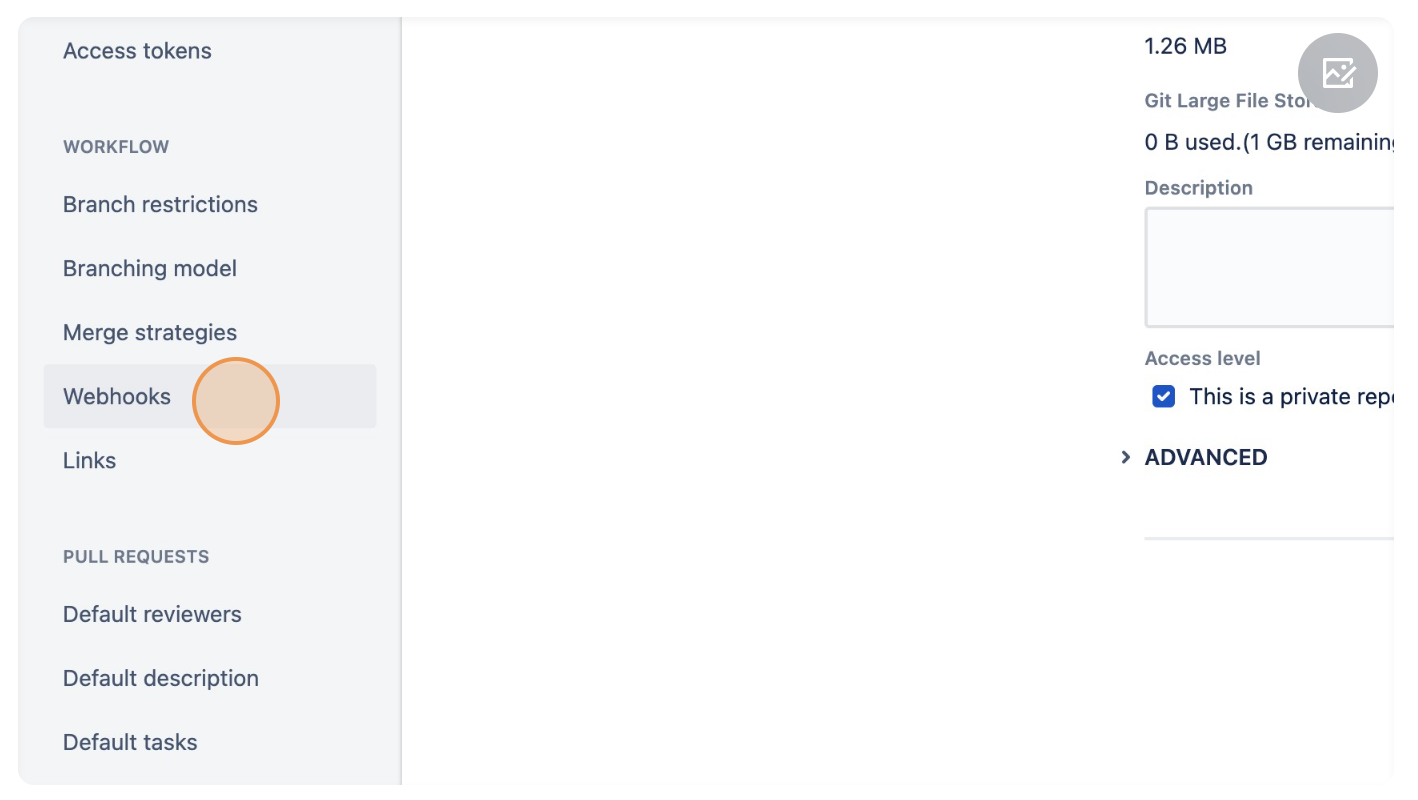
3. On left sidebar click on "Webhooks".
##### 
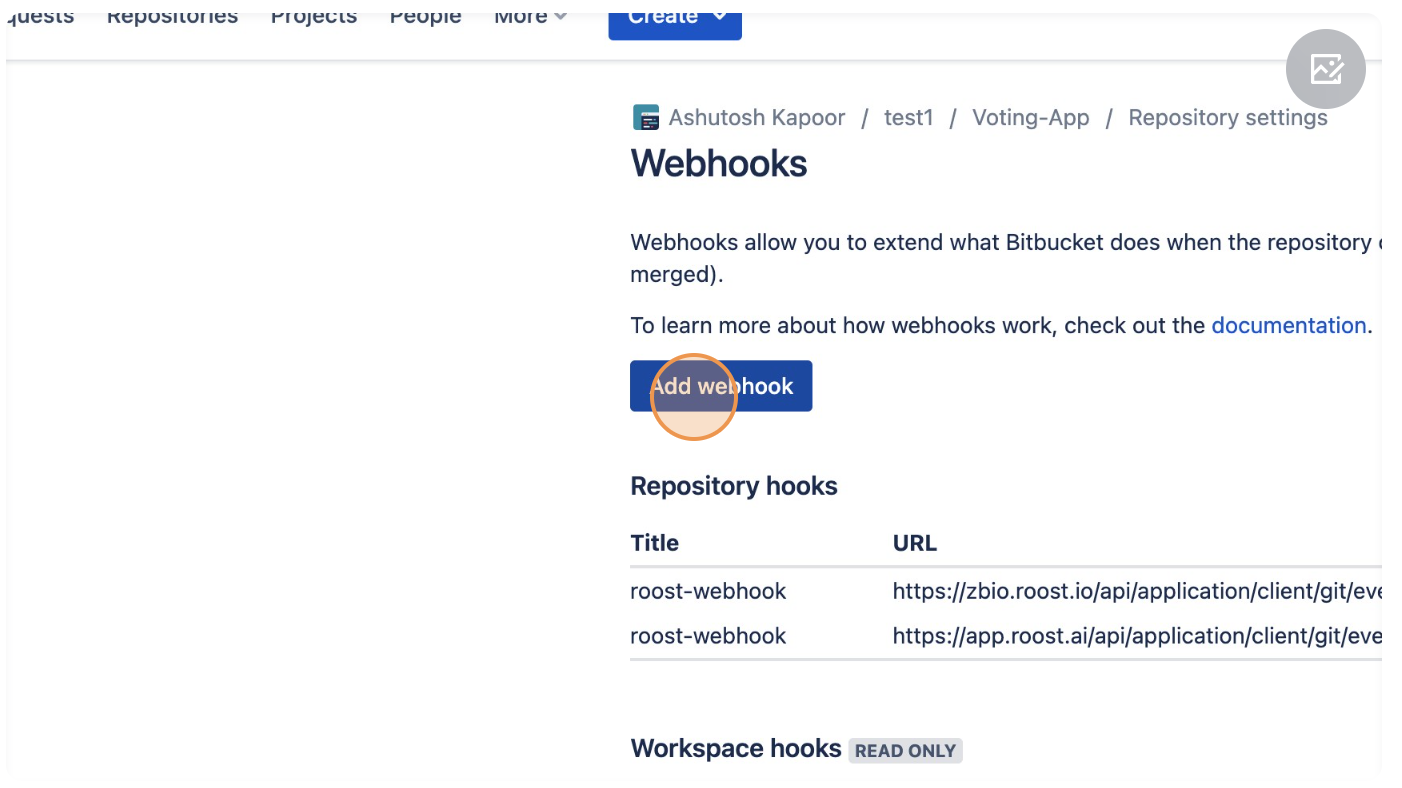
##### 4. Click "Add webhook".
[](https://roost-bookstack.s3.amazonaws.com/uploads/images/gallery/2023-04/TBjqapofJlrTXQL8-image.png)
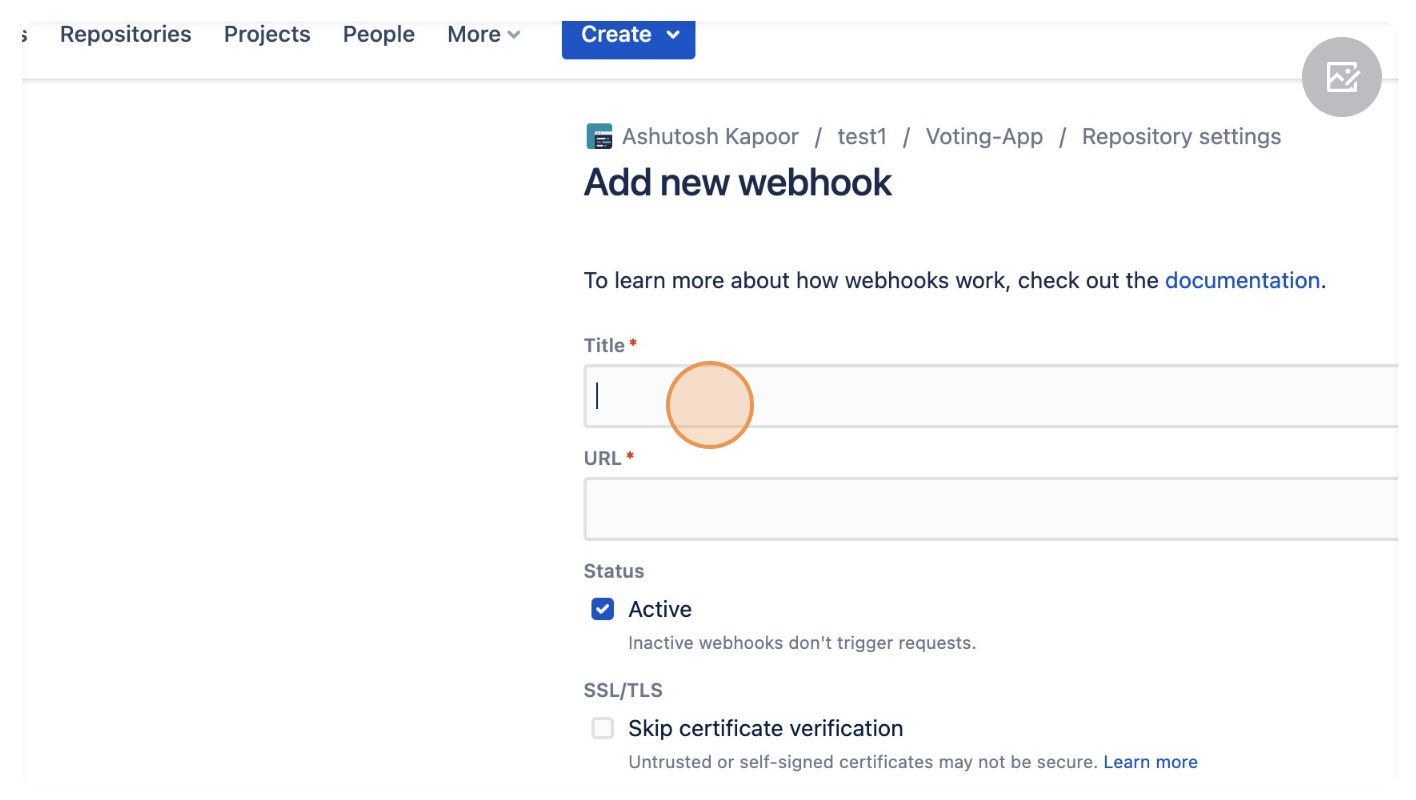
##### 5. In the Title add a name for the webhook.
[](https://roost-bookstack.s3.amazonaws.com/uploads/images/gallery/2023-04/jCXWWs8p7wqwFNgJ-image.png)
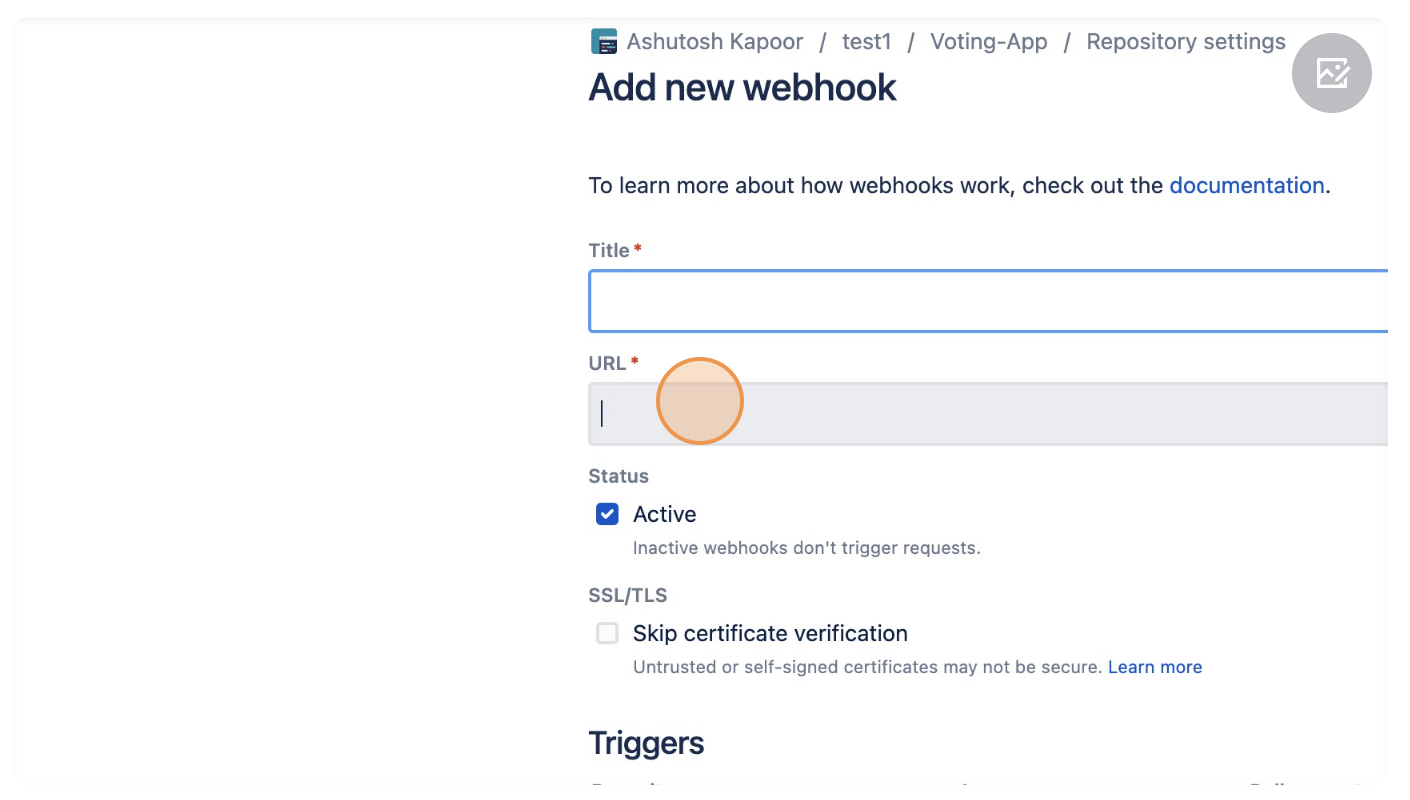
##### 6. In the URL add "https://<enterprise-dns>/api/application/client/git/events/add".
[](https://roost-bookstack.s3.amazonaws.com/uploads/images/gallery/2023-04/PDjydQ2gAMdNBUEU-image.png)
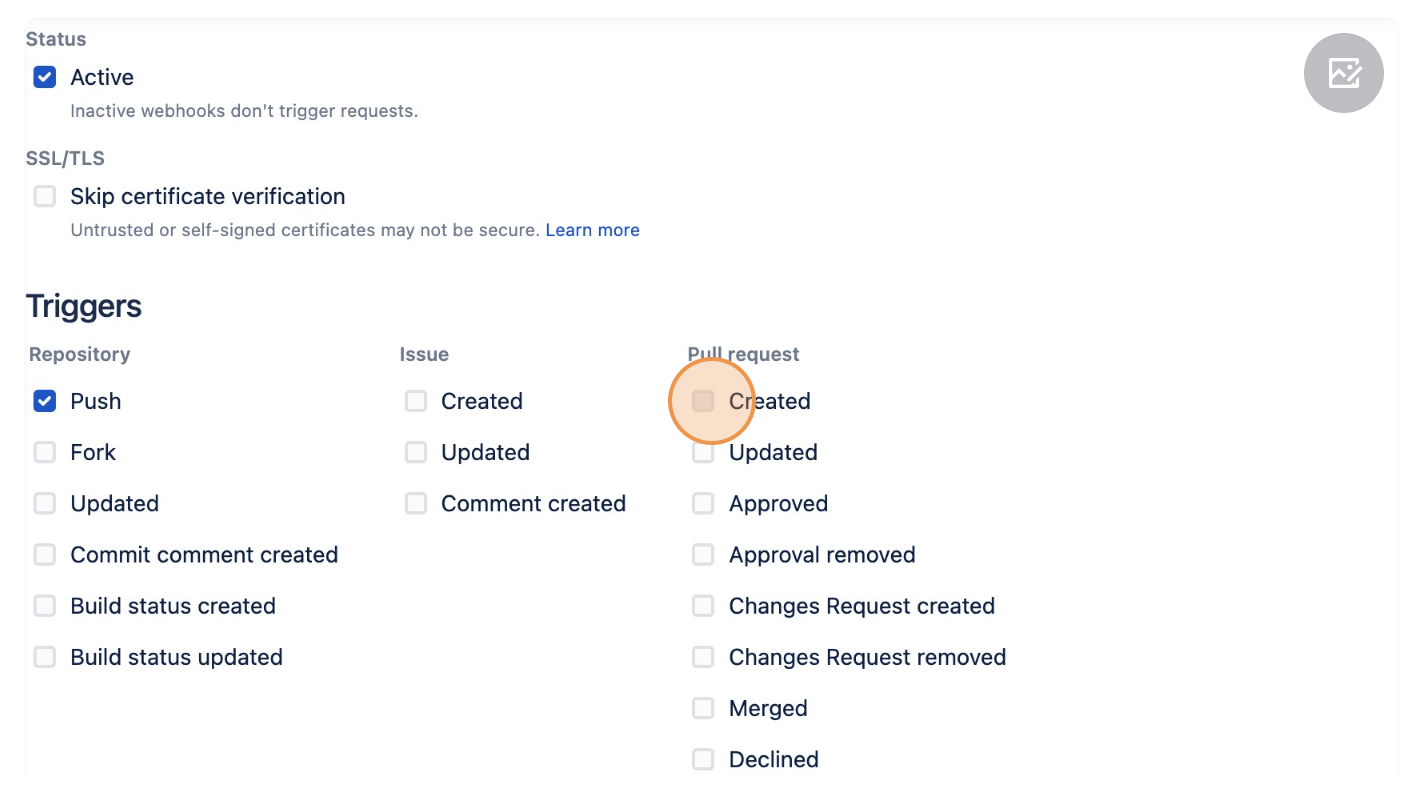
##### 7. Go to Trigger section and select "Created", "Updated", "Merged", "Declined" and "Push".
[](https://roost-bookstack.s3.amazonaws.com/uploads/images/gallery/2023-04/CIKQHnDvhZnYnqrR-image.png)
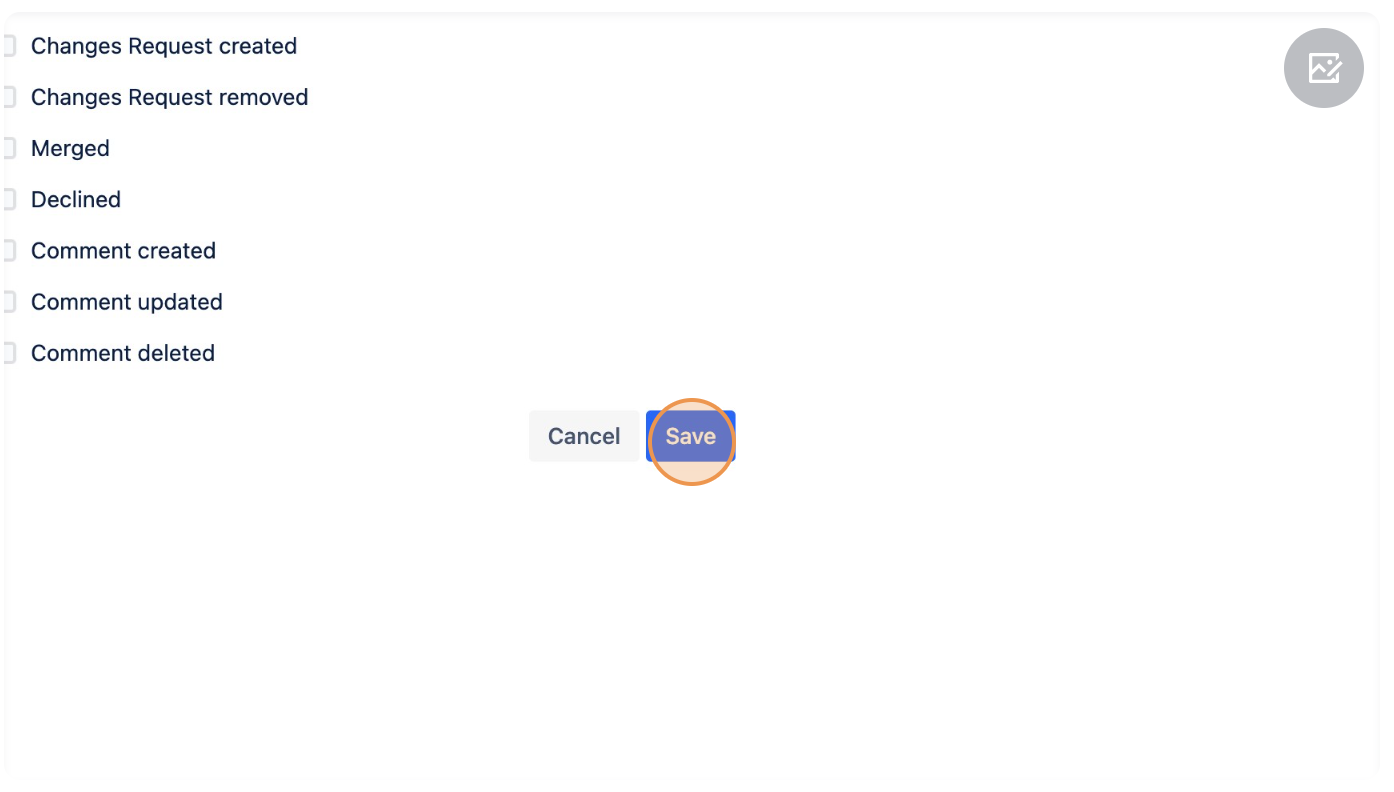
##### 8.Click "Save".
[](https://roost-bookstack.s3.amazonaws.com/uploads/images/gallery/2023-04/RTF1oCUalLSD6VYx-image.png)
# Bitbucket Server Webhook
1. ##### Navigate to your bitbucket server repo which you have added in the Roost EaaS workflow.
2. ##### Click "Repository settings".
[](https://roost-bookstack.s3.amazonaws.com/uploads/images/gallery/2023-04/hUYcRlgknePb9GND-screenshot-2023-04-11-at-2-10-26-pm.png)
3. ##### Click "Webhooks".[](https://roost-bookstack.s3.amazonaws.com/uploads/images/gallery/2023-04/tUScn9iHiObKuHaN-screenshot-2023-04-11-at-2-11-29-pm.png)
4. ##### Click "Create webhook".
[](https://roost-bookstack.s3.amazonaws.com/uploads/images/gallery/2023-04/aHkFlXPWcOyLNnoe-screenshot-2023-04-11-at-2-12-44-pm.png)
5. ##### Enter Name as "roost-webhook", URL as "https://<enterprise-dns>/api/application/client/git/events/add".
[](https://roost-bookstack.s3.amazonaws.com/uploads/images/gallery/2023-04/YtuZnEG5VI6aefzH-screenshot-2023-04-11-at-2-18-41-pm.png)
#####
6. ##### Select "Push" and Pull Requests events "Opened","Source branch updated","Modified","Merged","Declined","Deleted".
[](https://roost-bookstack.s3.amazonaws.com/uploads/images/gallery/2023-04/aTPlbaemkUzZXwr2-screenshot-2023-04-11-at-2-21-34-pm.png)
#####
7. ##### Click "Create".
[](https://roost-bookstack.s3.amazonaws.com/uploads/images/gallery/2023-04/O9DdsIUAhFmsalYI-screenshot-2023-04-11-at-2-22-23-pm.png)
# Azure Devops Webhook
##### 1. Navigate to [https://dev.azure.com/{organization\_name}/{project\_name}](https://dev.azure.com/priyanshisomani23105/trial-1)
##### 2. Click on "Project settings" (at bottom left corner)
##### 
##### 3. Click on "Service hooks" -> "Create Subscription"->next
[](https://roost-bookstack.s3.amazonaws.com/uploads/images/gallery/2023-04/7v5UELQUXIFhFqGN-image.png)
[](https://roost-bookstack.s3.amazonaws.com/uploads/images/gallery/2023-04/7PXs6jUBGHDX2NGM-image.png)
##### 4. Click on the dropdown & select "Code pushed"
[](https://roost-bookstack.s3.amazonaws.com/uploads/images/gallery/2023-04/m5wub9LEfllCKjmM-image.png)
[](https://roost-bookstack.s3.amazonaws.com/uploads/images/gallery/2023-04/uyYmQjwPYHERmj8H-image.png)
##### 5. Select specific repository and branch or select any and click on next
[](https://roost-bookstack.s3.amazonaws.com/uploads/images/gallery/2023-04/L6WBJsy8oDF6HSjV-image.png)
##### 6. In the URL settings add ["https://<enterprise-dns>/api/application/client/git/events/add"](https:///api/application/client/git/events/add)
[](https://roost-bookstack.s3.amazonaws.com/uploads/images/gallery/2023-04/R6uniFw81yY5Vd2N-image.png)
[](https://roost-bookstack.s3.amazonaws.com/uploads/images/gallery/2023-04/Rre8O9TYfooV1Nzd-image.png)
##### 7. Click on Finish
[](https://roost-bookstack.s3.amazonaws.com/uploads/images/gallery/2023-04/0uOYwrDXjACOi9a5-image.png)
##### 8. Repeat the same process for "Pull request Created" & "Pull request Merged"
[](https://roost-bookstack.s3.amazonaws.com/uploads/images/gallery/2023-04/60gaT8MTGMLHjsg4-image.png)